
대시보드 둘러보기
대시보드는 이 PC에서 돌아가는 Claude Code 세션을 프로젝트 → 리더 → 에이전트 순으로 묶어 보여 줍니다. 평소처럼 VS Code나 터미널에서 Claude Code를 쓰면 세션이 저절로 나타납니다.
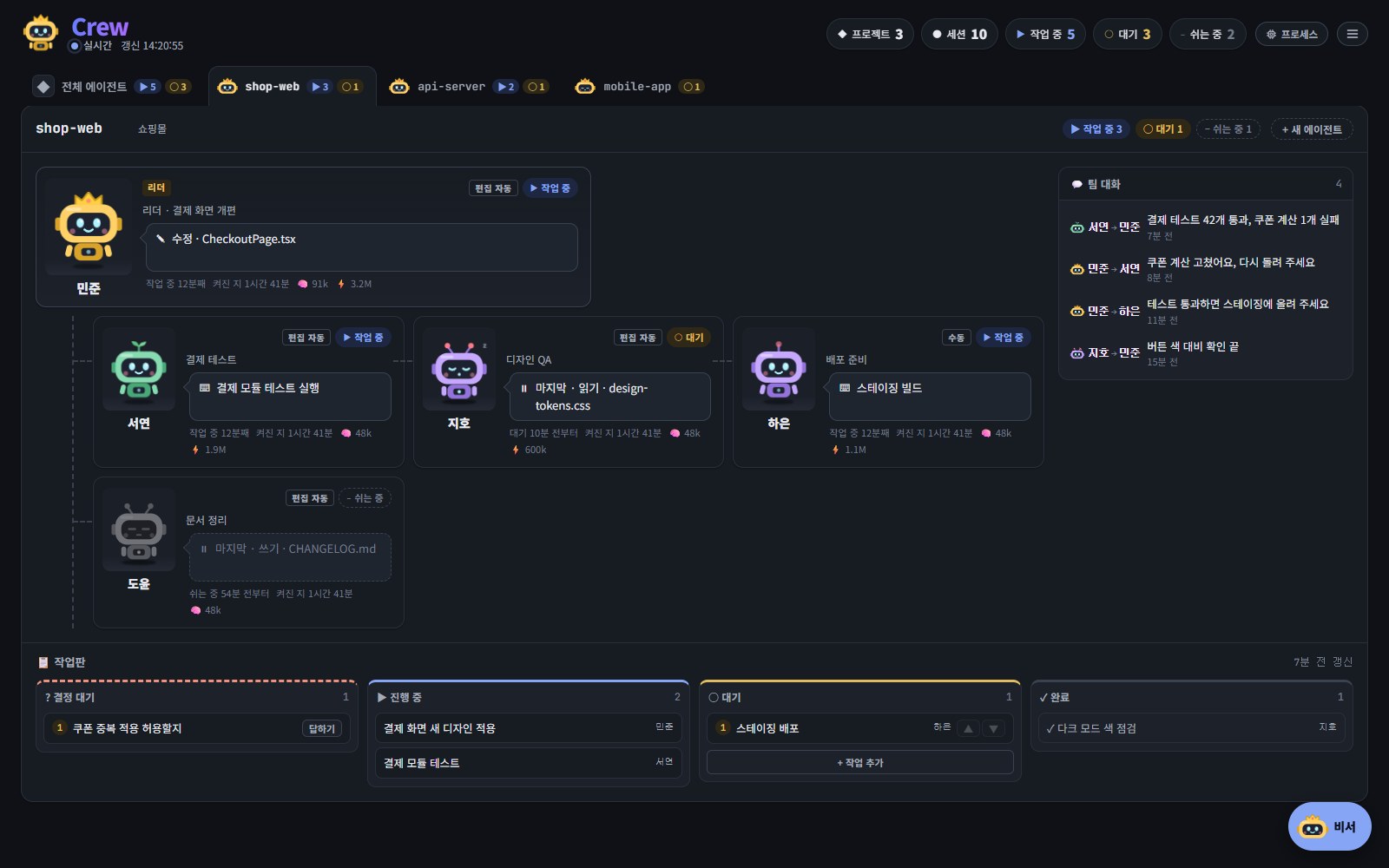
화면 구성
| 헤더 | 프로젝트·세션·작업 중·대기·쉬는 중 숫자, 프로세스 버튼, 메뉴 ☰가 있습니다. 숫자에 마우스를 올리면 그 숫자에 든 프로젝트나 에이전트가 목록으로 나오고, 누르면 그 탭이나 에이전트 창이 열립니다. |
|---|---|
| 프로젝트 탭 | 프로젝트마다 탭이 하나 있고, 맨 앞에 전체 에이전트 탭이 있습니다. |
| 조직도 | 리더가 맨 위에, 나머지 에이전트가 그 아래에 달립니다. |
| 팀 대화 | 에이전트끼리 주고받은 메시지의 한 줄 요약입니다. 팀 대화 |
| 작업판 | 프로젝트의 할 일과 결정할 일입니다. 작업판 |
| 비서 버튼 | 오른쪽 아래 둥근 버튼입니다. 비서 |
화면은 3초마다 새로 불러옵니다. 탭이 가려져 있으면 15초마다 불러옵니다.
프로젝트 탭
- 프로젝트는 세션 작업 폴더 위쪽에 있는 git 루트 폴더입니다. 탭에는 리더 로봇과 작업 중(▶)·대기(○)인 세션 수가 나옵니다.
- 탭을 끌어다 놓으면 프로젝트 순서가 바뀝니다. 탭에 초점을 두고 Ctrl + Shift + ← / →로도 옮깁니다.
- 프로젝트 이름 옆의 ✎를 누르면 화면에서 쓸 이름을 따로 정합니다(40자까지). 폴더는 그대로이고, 비우면 폴더 이름으로 돌아갑니다.
- 한 프로젝트의 에이전트가 30분 안에 다른 git 저장소의 파일을 고쳤으면 카드에 ↗ 그 프로젝트가 붙습니다. 그 프로젝트 탭에는 다른 프로젝트에서 와서 작업 중으로 나옵니다.
상태
상태는 색만으로 구분하지 않습니다. 상태마다 기호, 글자, 로봇의 표정과 움직임이 따로 있습니다.
| ▶ 작업 중 | 세션이 일하고 있습니다. 로봇이 타자를 칩니다. |
|---|---|
| ○ 대기 | 턴을 마치고 쉰 지 30분이 안 됐습니다. 로봇이 꾸벅꾸벅 좁니다. |
| – 쉬는 중 | 30분 넘게 쉬고 있습니다. 로봇이 회색이 됩니다. |
| 승인 대기 | 승인 요청이나 질문이 답을 기다립니다. 로봇이 눈을 크게 뜨고 통통 뛰며, 머리 위에 주황색 !가 뜨고 카드 테두리가 깜빡입니다. 승인 요청과 질문 |
| VS Code 대기 | VS Code가 띄운 창이 답을 기다리는데, 그 창은 VS Code에서만 답할 수 있습니다. |
| 멈춘 듯 | 작업 중인데 10분 동안 아무 활동이 없습니다. 한 번 알림을 보냅니다. 멈춘 에이전트 |
에이전트 카드
- 리더는 왕관을 쓰고 리더 표시가 붙습니다. 리더는
config.json에 적힌 세션이고, 없으면 메시지를 가장 많이 보낸 세션(3개 이상)입니다. - 오른쪽 위에는 권한 모드(수동, 편집 자동, 계획, AUTO, 묻지 않음, 전부 허용)와 상태가 붙습니다. 권한 모드
- 이름 아래에는 리더가 정한 역할이나 세션 제목이 나옵니다.
- 말풍선은 지금 하는 일입니다(예: "수정 · CheckoutPage.tsx"). 쉬고 있으면 마지막 동작이 나옵니다. 말풍선을 누르면 에이전트 창이 열립니다.
- 아래 줄에는 그 상태로 있은 시간, 켜진 지 얼마인지, 그리고 다음 표시가 붙습니다.
| 🧠 | 컨텍스트 크기(토큰) |
|---|---|
| ⚡ | 그 세션과 서브에이전트가 오늘 쓴 토큰. 마우스를 올리면 입력·캐시·출력으로 나눠 보여 줍니다. |
| ⚙ N | 세션이 띄운 프로세스 수. CPU를 많이 쓰면 빨갛게 됩니다. |
| 🤖 N | 돌고 있는 서브에이전트 수 |
| ⚠ N | 최근 도구 결과 중 실패한 수 |
| ⇄ 모니터로 감 | 이 VS Code 세션은 ELOP Crew 에이전트로 넘어갔습니다. 가져오기 |
에이전트 이름
에이전트마다 사람 이름이 붙습니다. 한국어로는 민준, 서연…, 영어로는 Tom, Mark… 입니다. 이름은 세션에서 만들기 때문에 어느 브라우저에서 봐도 같고, 서로 겹치지 않습니다. 이름과 모습을 직접 정하려면 이름과 모습 바꾸기를 보세요.
에이전트 창
카드를 누르면 에이전트 창이 열립니다. 탭은 세 개입니다.
| 정보 | 프로젝트, 역할, 지금 하는 일, 상태, 모드, 켜진 시간, 오늘 쓴 토큰 등입니다. 이름·모습·하는 일도 여기서 고칩니다. |
|---|---|
| 대화 | 그 세션의 대화를 VS Code 패널처럼 실시간으로 따라갑니다. 이메일, 전화번호, 주민·카드 번호, 키와 토큰처럼 보이는 것은 가려서 보여 주고, 저장하지 않습니다. |
| 서브에이전트 | 최근 서브에이전트의 종류, 목적, 마지막 동작, 도구 호출 수입니다. 하나를 고르면 그 대화를 따라갑니다. |
메시지 보내기
- 대화 탭 아래 입력창에 쓰고 Enter로 보냅니다. Shift + Enter는 줄바꿈입니다.
- 언제 전달되는지는 보내기 버튼의 툴팁에 나옵니다. 바로 전달되거나, 지금 턴이 끝나면 전달됩니다.
- VS Code 세션은 훅이 메시지를 기다려 주므로, 며칠째 쉬는 세션도 메시지를 받으면 깨어납니다(최대 일주일).
!로 시작하면 이 PC에서 에이전트 폴더를 기준으로 명령을 실행하고, 출력을 에이전트에게 전달합니다. 권한 검사 없이 내 권한으로 돌고, 2분이 지나면 멈춥니다.
최소화
창 오른쪽 위 ✕(닫기) 옆의 _(최소화)를 누르면 창이 화면 아래 막대의 칩으로 접힙니다. 칩을 누르면 보던 탭과 쓰다 만 메시지 그대로 다시 열립니다. Ctrl + 1…9는 그 번호의 칩을 누른 것과 같고, 입력 중에도 됩니다.
알림
데스크톱 앱
- 요청이 답을 기다리면 작업표시줄 버튼과 트레이 아이콘에 주황 점이 붙고, 트레이 툴팁에 건수가 나옵니다. macOS에서는 Dock 아이콘에 숫자가 붙습니다.
- 창이 앞에 없을 때 새 요청이 오면 작업표시줄이 깜빡이고(macOS는 Dock 아이콘이 튀어 오름) 데스크톱 알림이 뜹니다.
- 멈춘 듯한 에이전트, 80%와 95%를 넘은 사용량 한도도 알립니다.
- 알림을 누르면 창이 열립니다.
브라우저
- 답을 기다리는 요청이 있으면 탭 제목 앞에 (!2)처럼 건수가 붙습니다.
- 헤더의 🔔 알림 켜기를 눌러 알림을 허용하면, 탭이 가려져 있을 때 새 요청과 멈춘 에이전트를 데스크톱 알림으로 알려 줍니다.
휴대폰으로 알림을 받으려면 휴대폰 앱을 보세요.
사용량
메뉴 ☰의 Claude 계정을 누르면 이 PC의 Claude Code가 어떤 계정으로 로그인돼 있는지와 요금제, 한도를 얼마나 썼는지 보여 줍니다. 한도는 현재 세션 (5시간)과 주간 · 전체 모델이고, 각각 언제 초기화되는지도 나옵니다. Claude Code의 /usage와 같은 값입니다.
- Anthropic에는 5분에 한 번까지만 묻습니다. 새로 고침은 1분에 한 번 됩니다. 물어보지 못할 때는 가장 최근 값을 언제 확인했는지와 함께 보여 줍니다.
- 계정 창에는 오늘 토큰을 많이 쓴 에이전트도 나옵니다.
- 데스크톱 앱에서는 제목 줄과 트레이 툴팁에 세션 45% · 주간 29%처럼 나옵니다. 80%를 넘으면 노란색, 95%를 넘으면 빨간색이고, 한도마다 80%와 95%에서 한 번씩 알립니다.
- 계정 바꾸기는 로그아웃한 뒤 로그인 창을 엽니다. 로그아웃하면 다시 로그인할 때까지 이 PC의 모든 Claude Code 세션이 멈춥니다.
프로세스
헤더의 프로세스를 누르면 에이전트가 실행 중인 것이 에이전트별로 나옵니다. 에이전트 본체와 그것이 띄운 셸, 개발 서버, MCP 서버, 백그라운드 작업이 CPU나 메모리를 많이 쓰는 순서로 보입니다. 위쪽 차트는 최근 15분을 보여 줍니다. 끄기는 확인을 받은 뒤 세션이 띄운 프로세스만 끕니다. 세션 자신이나 PC의 다른 프로그램은 끄지 않습니다.
메뉴
| 언어 | EN / 한국어. 에이전트에게도 이 언어로 답하라고 알려 줍니다. |
|---|---|
| 테마 | 시스템, 라이트, 다크 |
| Claude 계정 | 로그인한 계정과 사용량(위) |
| ELOP Crew 클라우드 | 휴대폰 앱을 위해 이 PC를 계정에 연결합니다. PC 연결하기 |
| 정보 | 버전, 만든 곳, 소스 코드, 문제 알리기, 라이선스와 단축키 탭 |
단축키
| 1…9 | 강조된 요청에서 답 고르기(허용, 거부, 선택지) |
|---|---|
| Alt + 1…9 | 입력창에 쓰는 중에 같은 동작 |
| Enter | 질문의 답 보내기, 메시지 보내기 |
| ↑ / ↓ | 한 요청 안의 질문 사이 이동 |
| Shift + Enter | 메시지 안에서 줄바꿈 |
| Ctrl + 1…9 | 그 번호의 최소화한 에이전트 열기·접기 |
| Esc | 창 닫기 |
| ← / →, Home / End | 프로젝트 탭에 초점이 있을 때 이전·다음, 처음·마지막 프로젝트 |
| Ctrl + Shift + ← / → | 초점이 있는 탭이나 칩의 순서 옮기기 |
| Ctrl + Alt + J | 데스크톱 앱: 어디서든 창 보이기·숨기기(바꾸기) |
대시보드는 이 PC 안에서만 돕니다(127.0.0.1). PC를 계정에 연결했을 때만 휴대폰 앱의 요청이 crew.elopstudio.com 중계를 거칩니다. 무엇이 어디에 남는지는 계정과 개인정보에 있습니다.
The dashboard
The dashboard shows every Claude Code session on this PC, grouped as project → leader → agents. Use Claude Code as you always do, in VS Code or a terminal, and its sessions appear by themselves.
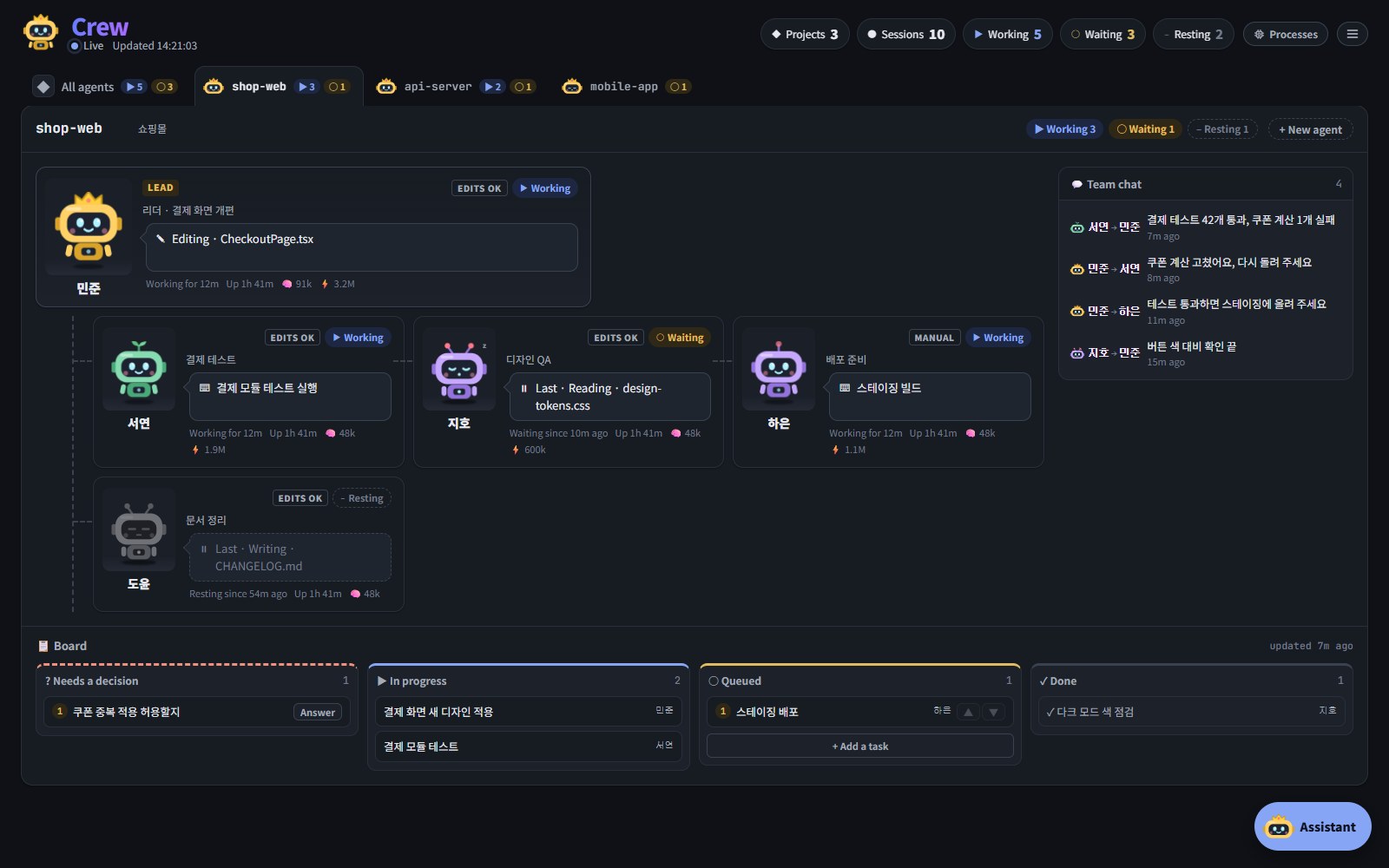
What is on the screen
| Header | Counts of projects, sessions, working, waiting and resting, the Processes button and the ☰ menu. Point at a count to list what it counts; click an entry to open that tab or agent. |
|---|---|
| Project tabs | One tab per project, with an All agents tab first. |
| Org chart | The leader on top, the other agents below it. |
| Team chat | One-line summaries of the messages the agents send each other. Team chat |
| Board | The project's tasks and open decisions. The board |
| Assistant | The round button at the bottom right. The assistant |
The page refreshes every 3 seconds, or every 15 seconds while its tab is hidden.
Project tabs
- A project is the git root folder above a session's working folder. Each tab shows the leader's robot and how many sessions are working (▶) or waiting (○).
- Drag a tab to reorder the projects, or press Ctrl + Shift + ← / → on a focused tab.
- ✎ next to a project's name gives it another name on the page (up to 40 characters). The folder is not touched; empty the name to get the folder's name back.
- If an agent from one project has changed files in another git repository within the last 30 minutes, its card gets ↗ other-project, and that project's tab lists it under Working here from other projects.
States
A state is never shown by colour alone: each has its own symbol, word, face and motion.
| ▶ Working | The session is busy. The robot is typing. |
|---|---|
| ○ Waiting | It finished its turn less than 30 minutes ago. The robot is dozing. |
| – Resting | Idle for 30 minutes or more. The robot is greyed out. |
| WAITING FOR YOU | A permission request or question needs your answer. The robot's eyes go wide, it hops, an orange ! sits over its head and the card's border pulses. Approvals and questions |
| IN VS CODE | VS Code is showing a prompt that can only be answered there. |
| STUCK? | Working, but with no sign of activity for 10 minutes. You get one notification. Stuck agents |
Agent cards
- The leader wears a crown and a LEAD tag. It is the session named in
config.json, or else the one that sent the most messages (at least 3). - The top right shows the permission mode (MANUAL, EDITS OK, PLAN, AUTO, NO ASK, ALL OK) and the state. Permission modes
- Under the name is the role the leader gave it, or the session's title.
- The speech bubble says what it is doing ("Editing · CheckoutPage.tsx", say), or its last action while it rests. Click the bubble to open the agent dialog.
- The bottom line has how long it has been in its state, how long it has been up, and these marks:
| 🧠 | Context size, in tokens |
|---|---|
| ⚡ | Tokens the session and its subagents used today; hover for input, cache and output |
| ⚙ N | Processes the session started; red when they use a lot of CPU |
| 🤖 N | Subagents running now |
| ⚠ N | Recent tool results that failed |
| ⇄ IN MONITOR | This VS Code session has been taken over by an ELOP Crew agent. Taking over |
Agent names
Every agent gets a person's name: Tom, Mark… in English, 민준, 서연… in Korean. The name comes from the session, so it is the same in every browser and no two agents share one. To pick a name and look yourself, see Names and looks.
The agent dialog
Click a card to open its dialog. It has three tabs.
| Info | Project, role, what it is doing, state, mode, uptime, tokens today and more. This is also where you change its name, look and what it does. |
|---|---|
| Conversation | The session's conversation, live, like the VS Code panel. E-mail addresses, phone and ID numbers, card numbers and anything that looks like a key or token are masked, and nothing is stored. |
| Subagents | Recent subagents with their kind, purpose, last action and tool calls. Pick one to follow its conversation. |
Sending a message
- Type in the box under the conversation and press Enter. Shift + Enter starts a new line.
- The send button's tooltip says when the message will arrive: right away, or when the agent finishes its current turn.
- For VS Code sessions a hook waits for your messages, so even a session that has rested for days wakes up when one arrives (for up to a week).
- A message starting with
!runs as a command on this PC, in the agent's folder, and the agent gets the output. It runs as you, with no permission check, and stops after 2 minutes.
Minimising
_ (Minimise), next to ✕ (Close) at the top right of the dialog, folds it into a chip on a bar along the bottom. Click the chip to reopen it on the same tab, with your unsent message still there. Ctrl + 1…9 does the same as clicking the chip with that number, even while you type.
Alerts
In the desktop app
- While requests wait, the taskbar button and the tray icon carry an orange dot and the tray tooltip counts them. On a Mac the count shows on the Dock icon.
- When a new request arrives and the window is not in front, the taskbar button flashes (the Dock icon bounces on a Mac) and a desktop notification appears.
- An agent that looks stuck, and a usage limit passing 80% or 95%, are notified too.
- Clicking a notification opens the window.
In a browser
- While requests wait, the tab title starts with a count such as (!2).
- Click 🔔 Notify me in the header and allow notifications: while the tab is hidden, new requests and stuck agents then show as desktop notifications.
For notifications on your phone, see The phone app.
Usage
Claude account in the ☰ menu shows which account Claude Code on this PC is signed in with, its plan, and how much of its limits is used: Current session (5 h) and Week · all models, each with when it resets. These are the same numbers as Claude Code's /usage.
- Anthropic is asked at most every 5 minutes; Refresh works once a minute. When it cannot be asked, the newest numbers are shown with the time they are from.
- The dialog also lists the agents that used the most tokens today.
- In the desktop app the session and weekly percentages sit in the title strip and the tray tooltip, yellow past 80% and red past 95%. Each limit is notified once at 80% and once at 95%.
- Switch account signs out and opens a sign-in window. Sign out stops every Claude Code session on this PC until you sign in again.
Processes
Processes in the header lists what the agents have running, grouped by agent: the agent itself and the shells, dev servers, MCP servers and background tasks it started, heaviest first by CPU or memory. A chart above shows the last 15 minutes. End stops a process the session started, after asking; it never ends the session itself or anything else on the PC.
The menu
| Language | EN / 한국어. The agents are told to answer you in this language too. |
|---|---|
| Theme | System, Light or Dark |
| Claude account | The signed-in account and its usage (above) |
| ELOP Crew Cloud | Links this PC to your account for the phone app. Linking a PC |
| About | Version, maker, source code, where to report a problem, the licence, and a Shortcuts tab |
Keyboard shortcuts
| 1…9 | Pick an answer on the highlighted request: Allow, Deny, an option |
|---|---|
| Alt + 1…9 | The same while typing in a text box |
| Enter | Send the answers to a question; send a message |
| ↑ / ↓ | Move between the questions of one request |
| Shift + Enter | A new line in a message |
| Ctrl + 1…9 | Open or fold the minimised agent with that number |
| Esc | Close the dialog |
| ← / →, Home / End | With a project tab focused: previous / next, first / last project |
| Ctrl + Shift + ← / → | Move the focused tab or chip |
| Ctrl + Alt + J | Desktop app: show or hide the window from anywhere (change it) |
The dashboard runs only on this PC (127.0.0.1). Only when you link the PC to an account do the phone app's requests pass through the crew.elopstudio.com relay. What is kept where is in Your account and privacy.